
Real Working MethodUses SSH + Payload + SNIBeginner-FriendlyCreate & Share Config Files

How to Create HTTP Injector Config Files (.ehi) (Working Method 2026)

Want to create your own working config files for HTTP Injector? ๐Ÿ”ฅ This guide will walk you through the complete process of creating HTTP Injector (.ehi) files using SSH account, Payload, and SNI (Bug Host). Follow each step carefully to create a working config for free internet.

D
By debosstbs
10 min read
Create HTTP Injector Config Files Guide

1.Step 1: Download HTTP Injector

To get started, you need the HTTP Injector application. Install the app from the Play Store if you haven't already.

Download HTTP Injector

Get the latest version from the official source.

Download App

Then open the HTTP Injector app.

2.Step 2: Create an SSH Account

To use HTTP Injector, you must first create an SSH account. This will act as the secure server for your connection.

1

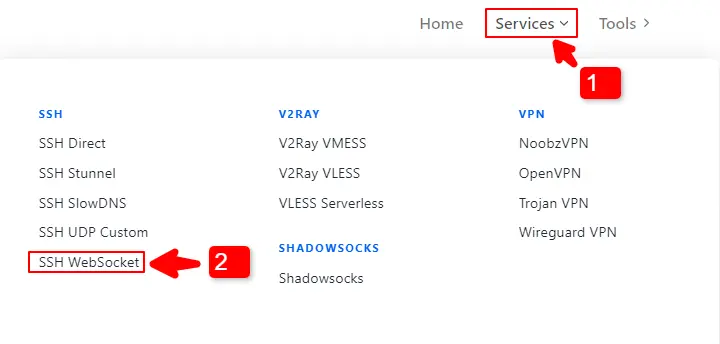
Open your browser and go to sshocean.com

2

Click on Services

3

Select SSH WebSocket

Select SSH WebSocket Service
4

Scroll down and choose your country ๐ŸŒ

5

Click Select Server

6

Pick a server with available slots

7

Click Create and complete the CAPTCHA

After creation:

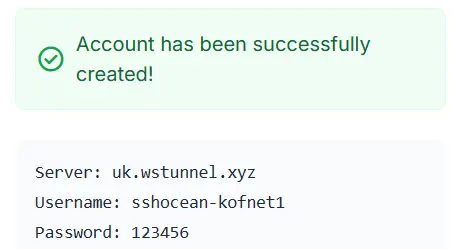
  • Copy your SSH details
  • Copy the second payload provided
SSHOcean dashboard details

3.Step 3: Generate SNI (Bug Host)

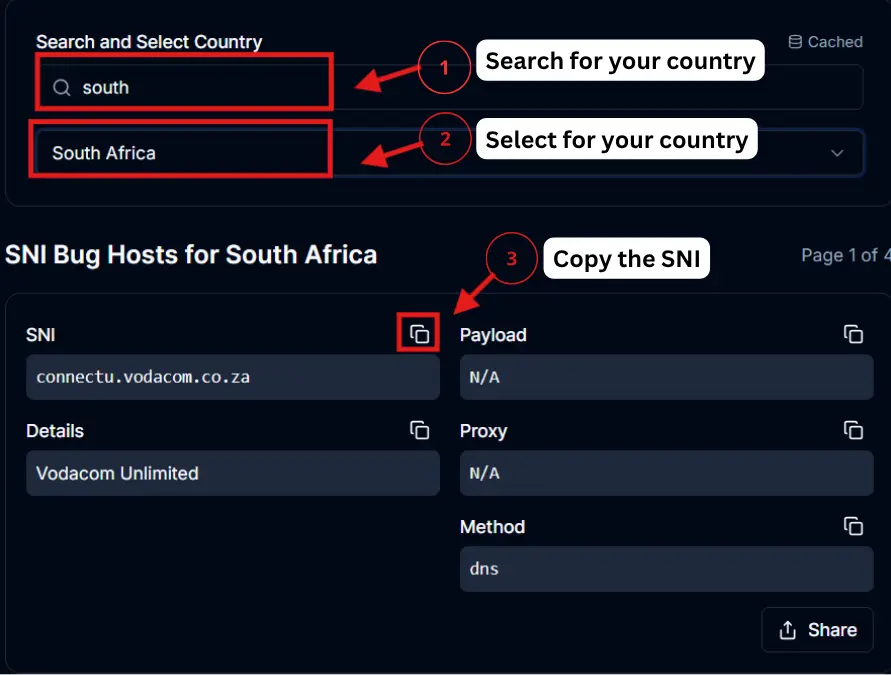
Now generate a working SNI (Server Name Indication) or bug host for your network.

1

Choose your network ๐Ÿ“ถ

2

Select your country ๐ŸŒ

3

Generate bug hosts

4

Copy a working SNI

Generate SNI Bug Host

4.Step 4: Generate Payload

Next, you need to create a payload using your SNI and SSH server details.

1

Paste your SNI under SNI/Bug Host

2

Paste your SSH hostname under Server Name

Youโ€™ll get a payload like:

GET / HTTP/1.1
Host: your-bughost.com
Upgrade: websocket
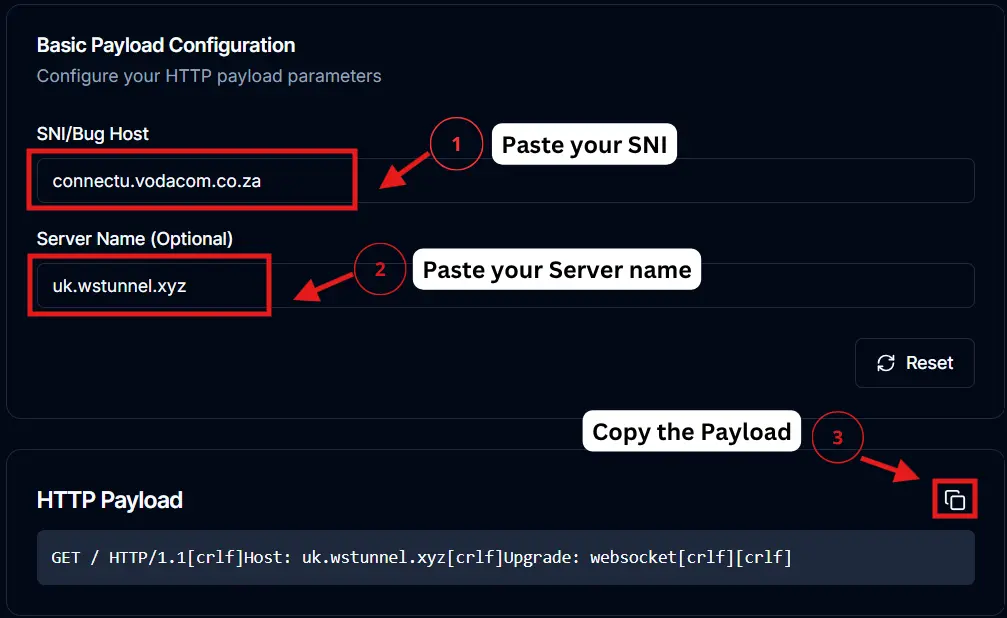
Copy the first HTTP payload
Generate Payload

5.Step 5: Configure HTTP Injector

Now it's time to combine everything and build your config inside the app.

AMain Setup
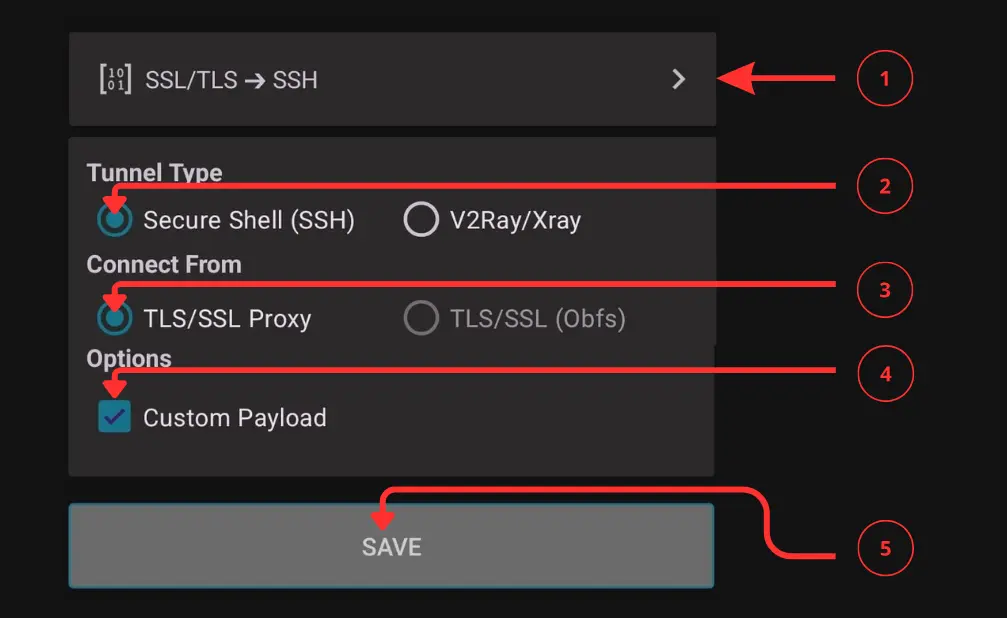
Open the app
Select: SSL/TLS + SSH
Enable: Custom Payload
Tap Save
Paste your generated payload
Main Setup in HTTP Injector

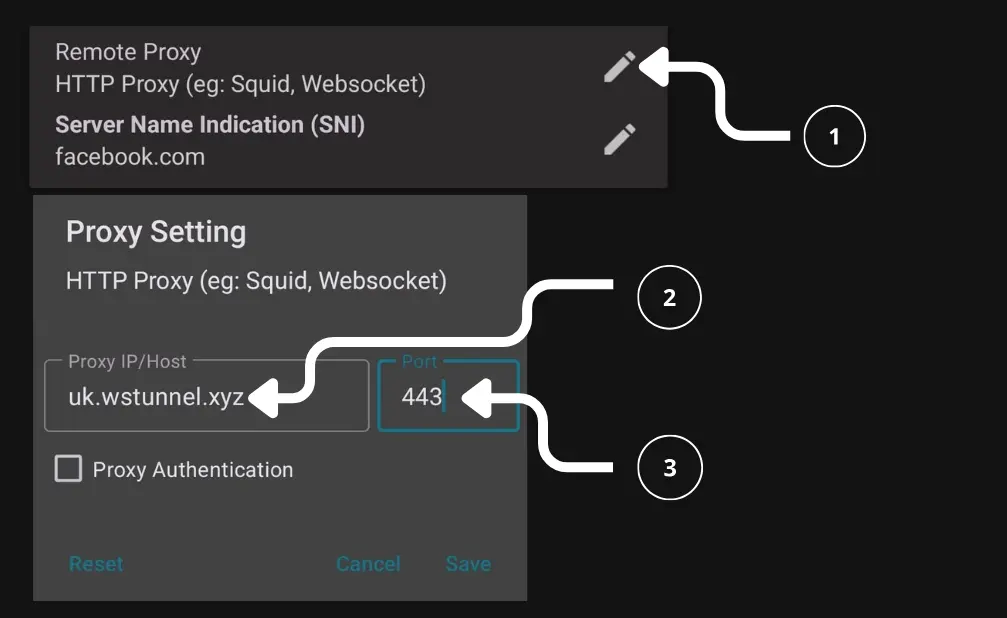
BRemote Proxy Configuration

Edit Remote Proxy
Paste your SSH hostname
Set port: 443
Save
Remote Proxy Setup

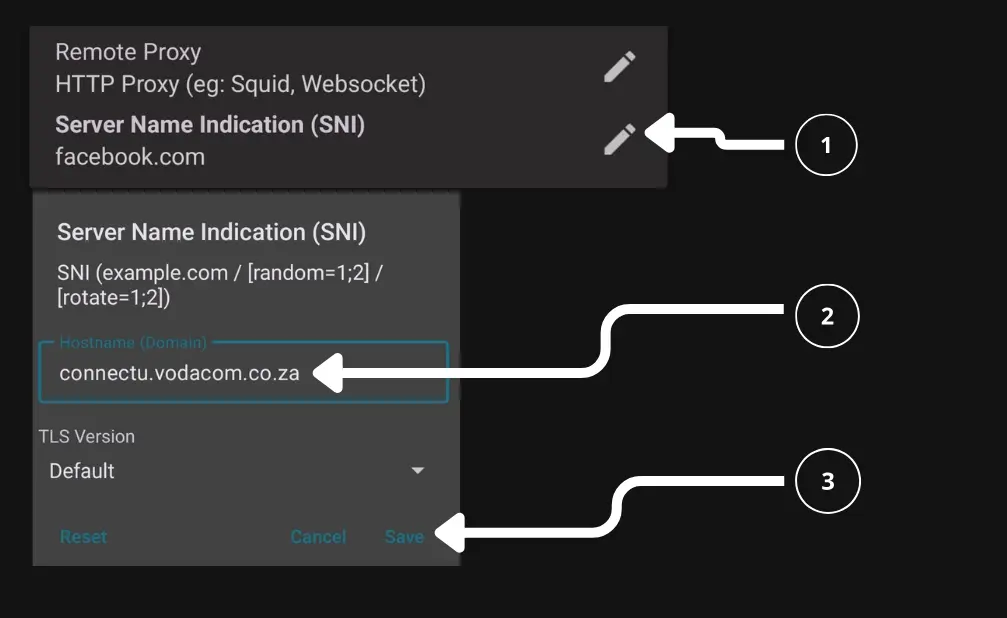
CAdd SNI Host

Open SNI settings
Paste your SNI
Click Save
Add SNI Host

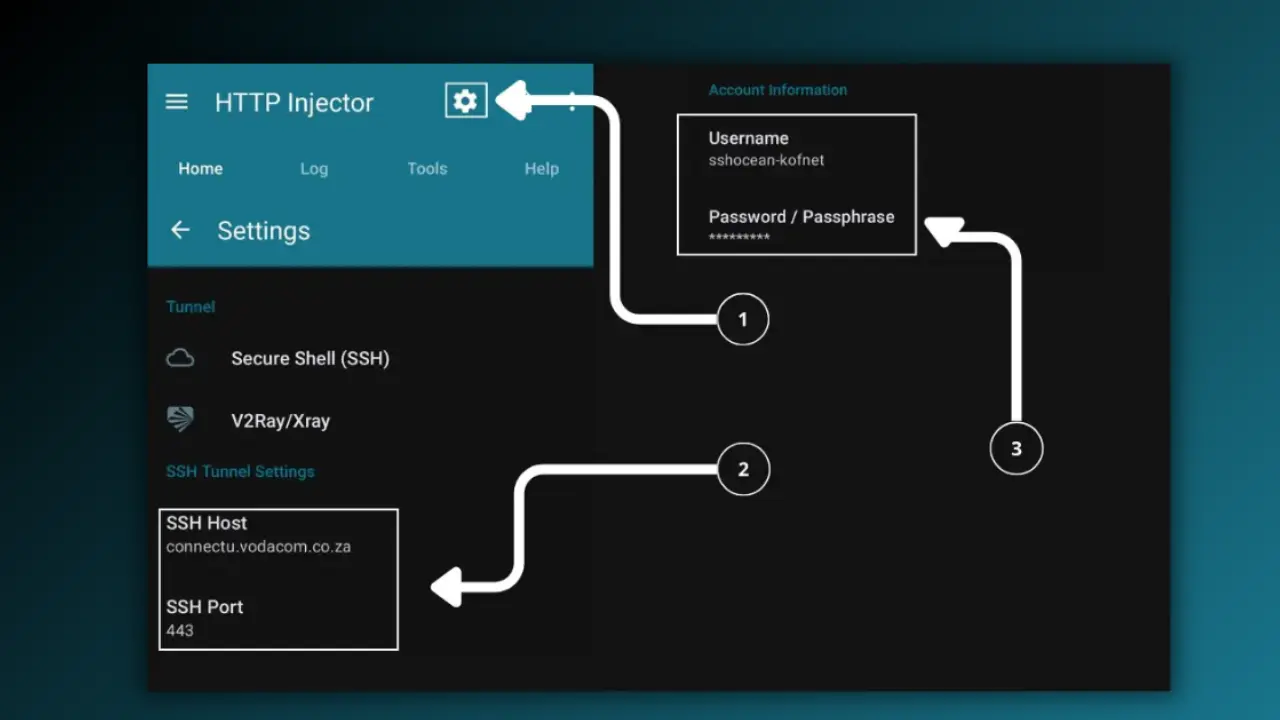
DConfigure SSH

Open SSH Settings
Paste your SSH hostname
Enter port: 443
Enter username and password
Save settings
Configure SSH

6.Step 6: Connect and Test

Now it's time to test if your configuration works.

Go back to the main screen
Tap Start
Check the Log tab

If you see โ€œConnectedโ€, your config is working ๐ŸŽ‰

Once connected, you can browse using mobile data without consuming your data bundle (depending on the bug host).

7.Step 7: Export Config File (.ehi)

Once everything is working perfectly, you can export it as an .ehi file to share with others.

1

Tap the menu icon (top right)

2

Select Export Config

3

Save your .ehi file

Your config file is ready to share!

Troubleshooting

Not Connecting

  • Try a different SNI
  • Use another SSH server
  • Regenerate payload

Slow Speed

  • Switch server
  • Try another config

No Internet

  • Double-check payload + SNI
  • Restart the app

๐Ÿ’ก Pro Tips

Always use fresh SSH accounts

Test before exporting

Use working SNIs only

Keep configs simple

Is This Safe?

Using HTTP Injector is safe if:

You use trusted sources

You donโ€™t share personal data

You test configs properly

Conclusion

Creating HTTP Injector config files is straightforward when you follow the correct process. By combining a fresh SSH account, a working SNI, and the right payload, you can generate reliable configs and share them with the community! ๐Ÿš€

Create SSH account
Generate SNI
Generate payload
Configure app
Export file

More HTTP Injector Guides

Frequently Asked Questions

Q: What is a .ehi file?

A: A config file used in HTTP Injector.

Q: Do I need coding skills?

A: No, just follow the steps to generate payload and SNI.

Q: Why is my config not working?

A: Your SNI, payload, or SSH may be invalid.

Q: Can I share my config?

A: Yes, after testing it using the export function.