

Easy Setup GuideOne-Click ConnectionWorks on Multiple NetworksFree Internet Access
Step-by-Step Guide

How to Import Stark VPN Config Files (Easy Setup Guide 2026)

If you've already downloaded a Stark VPN config file, the next step is to import it into the app. Config files make everything easier by automatically loading the required settings no manual configuration needed. Follow this step-by-step guide to get connected in minutes.

D
By debosstbs
5 min read
How to Import Stark VPN Config Files

What You Need Before Importing

Before you start, make sure you have everything ready:

Stark VPN installed

Get it from the Google Play Store.

Config file downloaded

Get one from our files library.

File in Downloads

Make sure the file is saved on your device.

Stark VPN files ready to download

1.Step 1: Open Stark VPN

Launch the Stark VPN app on your Android phone and wait for it to load completely before proceeding.

Launch the app from your home screen
Wait for the app to fully load

2.Step 2: Open the Menu

To access the import option, open the app menu. You can find it in one of two places:

Option A

Tap the top-left navigation icon

Option B

Tap the 3 dots menu (top right)
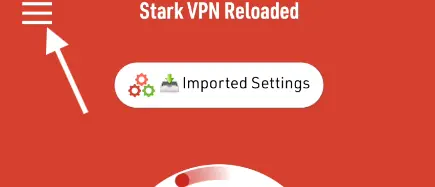
Stark VPN Menu - 3 Dots

3.Step 3: Tap "Import Settings"

From the menu that opens, find and tap on Import Settings. This will open your device's file browser so you can select the config file.

1. Scroll through the menu options

2. Tap Import Settings

3. Your file browser will open automatically
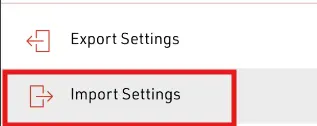
Stark VPN Import Settings Menu

4.Step 4: Locate Your Config File

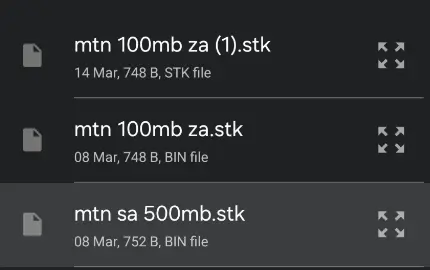
Once the file browser opens, navigate to your Downloads folder and find the Stark VPN config file you downloaded.

1

Open Downloads folder

2

Find your .stk file

3

Tap it to import

Select Stark VPN Config File from Downloads

5.Step 5: Select "Imported Settings" as Tweak

Very Important

Before connecting, you must select the imported config as your active tweak. Without this step, the app will not use your config file.

1

Look for the "Select Tweak" option on the main screen

2

Tap it and choose "Imported Settings"

3

A checkmark will confirm the config is active
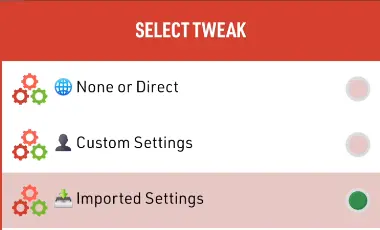
Select Imported Settings as Tweak in Stark VPN

6.Step 6: Connect

You're ready to connect. Tap the Connect button and wait a few seconds for the tunnel to establish.

Tap Connect

Press the main connect button and wait for the process to complete.

Connected βœ“

You'll see a connected status when the tunnel is active and working.
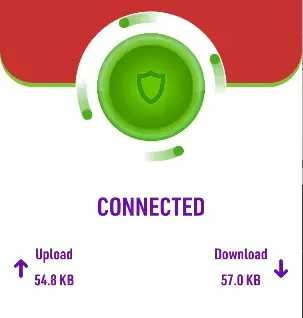
Stark VPN Connected Status
Stark VPN Only

Download Stark VPN Config Files

Tested and community-approved pick any and import

View All Files

Common Problems & Fixes

Config Not Showing

  • Check the Downloads folder
  • Re-download the config file

Not Connecting

  • Select "Imported Settings" as tweak
  • Try a different config file

App Not Responding

  • Restart the Stark VPN app
  • Clear the app cache

Tips for Best Performance

Use Updated Configs

Always use fresh configs outdated ones stop working when SNIs are blocked.

Try Different Files

If one config fails, switch to another. Different configs work on different networks.

Use Strong Signal

A stable network connection ensures the best results when connecting.

Avoid Peak Hours

Try connecting early morning or late at night for better speed and stability.

Is Stark VPN Safe?

Stark VPN is widely used, but always take basic precautions:

Download files from trusted sources only

Avoid unknown or unverified config uploads

Never enter personal information in the app

Conclusion

Importing Stark VPN config files is quick and simple. Once you've imported the file and selected it as your active tweak, you're ready to browse instantly. If a config stops working, just download a new one and repeat these steps.

Open Stark VPN app
Import your settings file
Select tweak β†’ Imported Settings
Tap Connect and browse

More Stark VPN Guides

Frequently Asked Questions

Q: What is a Stark VPN config file?

A: A file containing VPN settings for quick one-tap connection no manual setup required.

Q: Why is my config not working?

A: It may be outdated or not compatible with your network. Download a fresh config and repeat the import steps.

Q: Do I need to configure Stark VPN manually?

A: No. Config files automatically load all required settings when you import them.

Q: Can I import multiple configs?

A: Yes. You can import multiple configs and switch between them using the Select Tweak option on the main screen.